

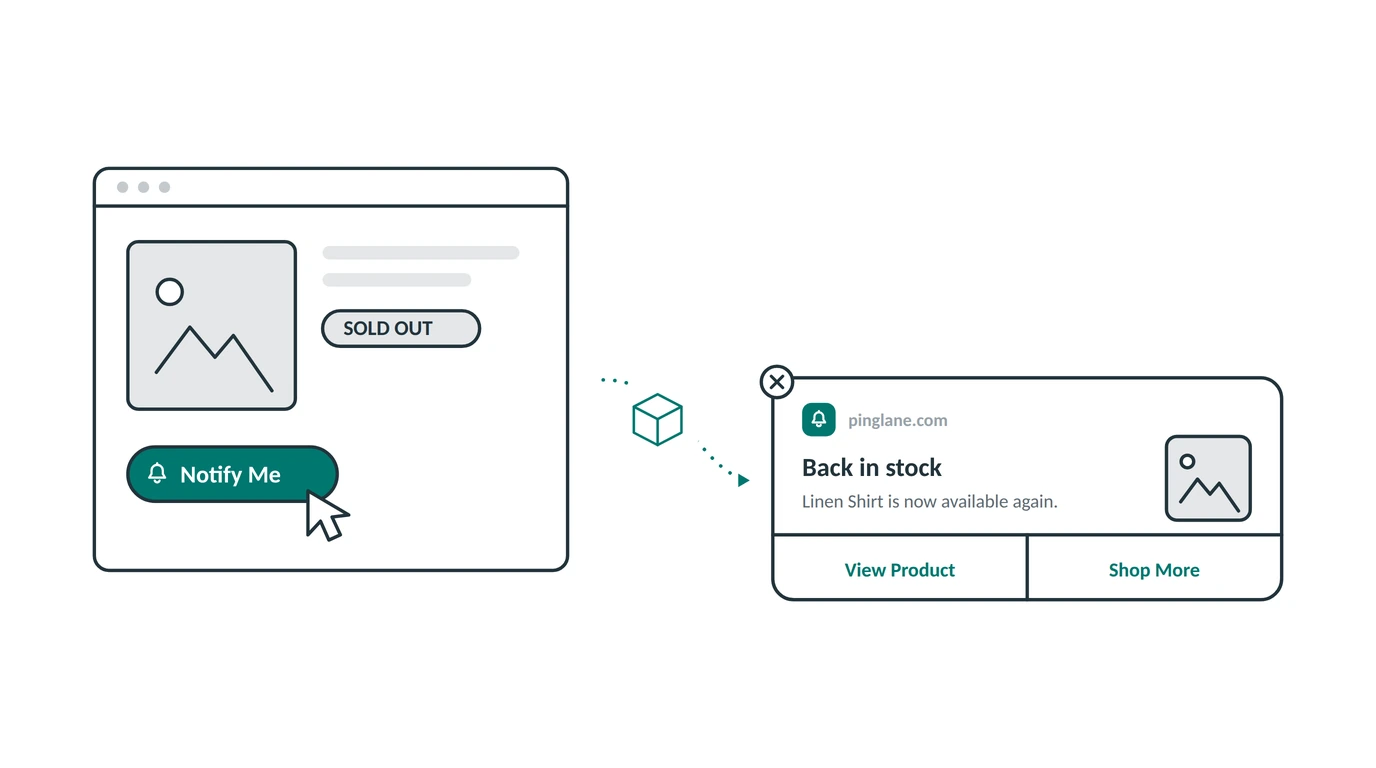
A sold out product page is the saddest page on your store.
Think about who is standing on it. Not someone who wandered in by accident. Someone who searched for that product, clicked, and decided they wanted it. They are ready to spend money. And your store has to say no.
Most of them leave and buy the same thing somewhere else. You never find out.
There is a simple fix. Instead of losing that shopper, you put them on a waiting list. Then the moment the product comes back, you tell them first.
Here is how that works with push notifications, and why nobody has to type an email address.
What a Back in Stock Alert Really Is
A back in stock alert is a message that sends itself when your stock goes back above zero.
It works in three steps:
- Someone who already gets your notifications lands on a product page that is sold out. A small button shows up that says Notify Me.
- They tap it. No form, no email, no typing. They are now on the waiting list for that product.
- You restock the product. Everyone on that list gets a message on their screen within seconds.
You do not hit send. You do not build a list by hand. You add stock in Shopify like you always do, and the alert goes out on its own.
One thing to know before you set this up. The Notify Me button only shows to people who have already said yes to your notifications. It does not ask for permission on its own. A notification needs a way to reach the shopper’s screen, and that only happens after they click Allow. So your permission prompt does the main job of building your subscriber list. This button simply lets those subscribers choose the exact products they want to hear about.
This is one of five automations that run in the background on your store. We cover the full set in our guide to Shopify push automations.
Why Speed Decides Who Buys
Here is the part most stores get wrong. They treat a restock alert like a newsletter. It is not. It is a race.
When a popular item comes back, you often have a small number of units and a group of people who all want them. Whoever hears first is the one who buys. Everyone else opens the message later and finds it sold out again. Now you have disappointed the people who were waiting for it.
So the time between “back in stock” and “shopper knows” is what matters most.
Push notifications close that gap almost completely. The message shows up on the screen in seconds, on a phone or a laptop, even if your website is closed. There is nothing to open and nothing to check.
Compare that with an email restock alert. It lands in an inbox. On a good day it goes to the main tab. On a normal day it goes to promotions, where it sits next to forty other marketing emails until the person happens to look. That might be four hours later. It might be tomorrow. By then your stock is gone.
Same alert, same shopper, totally different result. The only difference is how fast it arrived.
Joining the List Takes One Tap
Every email restock app has the same catch. Before it can help you, the shopper has to type their email address into a box and send it. That is a real decision, and plenty of people say no, because giving away an email usually means getting marketing emails forever.
Your subscribers already got past that in a much easier way. They clicked Allow one time, without typing anything, and you still do not know who they are. Joining a waiting list is then a single tap on the product page.
Saving that effort matters most on phones, where typing an email is annoying and where most of your visitors shop. A one-tap list gets used. A form often does not.
Setting It Up on Your Store
The back in stock automation starts switched off, because it needs its button added to your product pages first. Turning it on takes a few minutes.
Step one: switch on the automation. Open Push Automations in PingLane and turn on Back in Stock.
Step two: style the button. You get a small button that sits on the product page. You can put it at the bottom left or bottom right, change the colors to match your store, and pick a small animation like a gentle pulse so people notice it without feeling interrupted. We cover the button in detail in our guide to product page buttons.
Step three: check the message. A message is already written for you. It pulls in the product name and photo on its own, so people see the exact item they were waiting for.
That is it. From then on it runs by itself, on every product, forever.
What to Put in the Message
A restock alert is the easiest message you will ever write, because the shopper already wants the thing. Do not overthink it.
Say the product name. “Your size is back” is vague. “The Linen Shirt in Navy is back” tells them exactly what happened.
Show the photo. A picture does more work than any sentence. People recognize the item right away.
Keep it plain. “Back in stock” beats anything clever. Nobody needs a sales pitch here. They just need to know the item is ready to buy.
Link straight to the product page. Not your home page, not a collection. One tap from the message to the buy button.
Only say “hurry” if it is true. If you added twelve units, saying stock is low is honest and helpful. If you added four hundred, leave it out. Fake pressure is the fastest way to make people ignore your next message.
Mistakes to Avoid
Sending it to everyone. A restock alert should only go to people who asked about that product. Sending a message to your whole list about one specific item annoys people and makes them turn off notifications.
Waiting to send it later. There is no reason to hold a restock alert for a “good time to send”. The good time is the second the stock lands.
Hiding the button. If the Notify Me button sits too far down the page or blends in, people never see it and your list never grows.
Not updating your stock correctly. The alert checks your Shopify stock count. If you restock without updating that count in Shopify, nothing sends.
Common Questions
Do shoppers need to give an email address? No. They tap the Notify Me button once. You still never learn who they are, and you can still reach them.
Does the button ask people to allow notifications? No. It only shows to people who already said yes. Your permission prompt is what invites new visitors to say yes in the first place.
How fast does the alert go out? Right away. PingLane watches the product and sends the message the moment your Shopify stock goes back above zero.
Does this work on phones? Yes. Web push works in the browser on both computers and phones, so the alert reaches people wherever they were shopping.
What if the product sells out again fast? That is exactly why speed matters. Because the message arrives in seconds instead of hours, your waiting list gets a real shot at the restock instead of finding it gone.
Can I use this along with an email restock app? Yes, and the two reach different people. Email catches people willing to hand over an address. Push catches the rest. Our push versus email guide explains how the two groups differ.
Stop Losing Shoppers on Sold Out Pages
You already paid to get that shopper to the product page. The only thing between you and the sale was timing.
A back in stock alert fixes the timing. It costs you nothing per message, nobody has to type an email, and once it is on you never touch it again.
Install PingLane from the Shopify App Store and turn your sold out pages into a waiting list instead of a dead end.